Context is what makes an assistant useful. An answer that knows the contract renews in March, and that invoices go to Priya, beats a clever answer that knows neither. Context is also what makes people nervous, reasonably. If an assistant knows things, you should be able to see what, where from, and what it sends.
That is the rule behind memory and context in LumenQube: whatever the assistant uses, you can read. Not on a policy page — on the screen, in the conversation, before and after.
Your work, connected
LumenQube keeps a map of how your work relates, in a small database on your computer. A note that links to a contract is connected to it. A spreadsheet the agent built from that contract stays connected to its source. Search finds documents by their words; the map finds what belongs with them — which is how “draft the renewal reminder” becomes an answer that already knows the renewal. Most connections come from what you do — linking a note, building a sheet from a source — and one worked out from what a note says can be removed.
From your work to one question
- Your work is connected: a cost sheet made from the contract stays linked to it.
- Notes link to what they mention, and the assistant keeps a few facts about you.
- You ask for the renewal reminder with the planning note open.
- On this computer, the app writes a short note: what you are working on and what is related.
- It adds what it remembers about you — the same text every time for the same situation.
- You can read that note before anything is sent.
- For a cloud answer, your question and that note are what leave your computer.
- The answer shows the sources it used and the memories it leaned on.
Read the note before it goes
In Settings › Memory & context, the section What gets added to your questions says it plainly: “Before the assistant answers, the app adds a short note about what you are working on and what it remembers about you. It is built on this computer, and it is the same text every time for the same situation.” Below it, Show what would be sent prints that note, word for word.
The note is deliberately small — a handful of related items, a short title each, a hard length ceiling — and it carries titles and how things relate, not the documents themselves. When there is nothing to add, the preview says that too.
Memories with a source
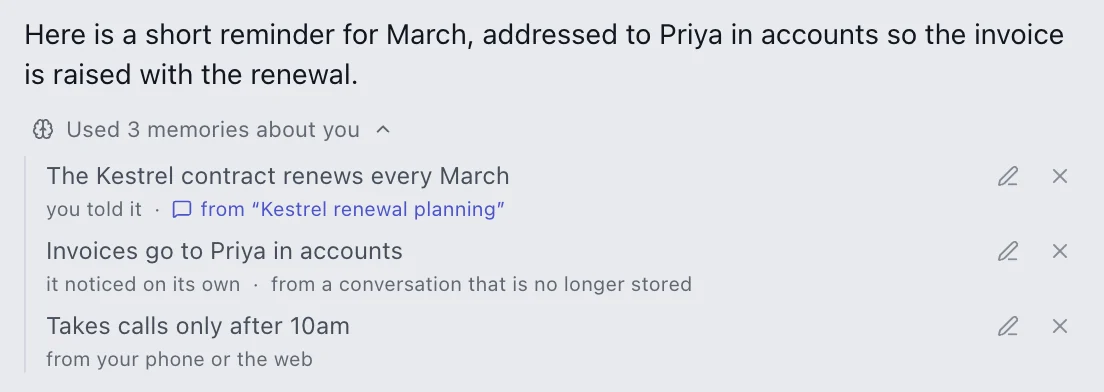
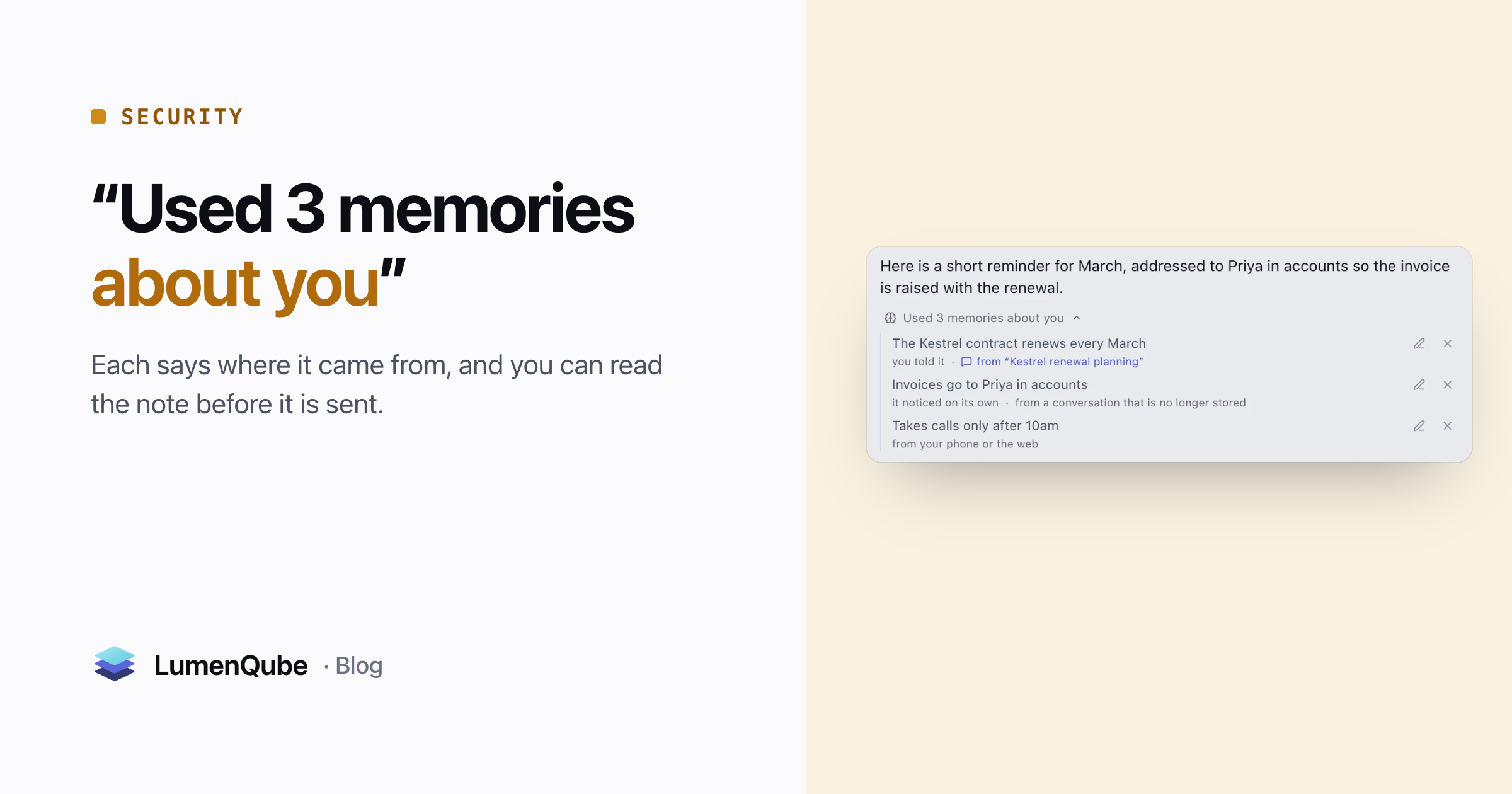
When an answer leans on something remembered, it says so — “Used 3 memories about you” — and each memory names where it came from: you told it, in a named conversation; it noticed on its own; or it arrived from your phone or the web. Each can be edited or removed right there. Provenance matters because memories go stale: Priya moves teams, the renewal moves to April. A fact that says where it came from is one you can check and correct, instead of an assistant that is confidently out of date.
Two switches govern it. Remember things between conversations keeps durable facts, like how you prefer answers. Notice things on its own lets it read a finished conversation and note up to three lasting things, each shown in the conversation it came from and undoable there. Answers built from files say how many sources they used, too.
Exclude and forget
- See: read the note before it is sent, and where each memory came from.
- Exclude: Hide from AI takes a file out of what the assistant can find and send.
- Forget: it asks first, with counts, and says what it could not reach.
Any file in the Library can be set to Hide from AI, which takes it out of the assistant’s search and out of the note. Hiding does not delete anything; Show to AI brings it back. Forget goes further: it asks first, shows counts of what it will erase, and afterwards reports anything it could not reach — including whether that was on this computer or another device.
- Memories are stored on this computer and follow you to your other computers when you are signed in.
- The map of how your work relates is built and kept on this computer.
- The note is built here, and you can read it before it is sent.
Most days, you will not open any of this
That is the point of a good default. The note is built quietly, answers arrive with their sources and memories listed underneath, and a memory you dislike is one click from gone. The controls earn their place on the day you need them: before you take on a confidential client, when a colleague asks what the AI could have seen, or when a project ends and you want its traces gone.
What does leave your computer
Plainly: ordinary editing stays on your computer. When the assistant answers with a cloud model, your question, that note and anything you attach are sent to produce the answer. Turn off Remember things between conversations and answers use only what you attach. Sharing and transcription have their own rules, set out in What stays local. What goes online.
The same receipts appear on agent runs — sources, memories, what crossed the line — in One request, three files. And automations run on this computer too: the automation that costs nothing while it waits.
Questions about memory and privacy
Does LumenQube send my files to an AI model?
Only what a request needs. Ordinary editing stays on your computer. A cloud answer sends your question, the short note you can preview, and any file you attach to that request.
Can I see everything the assistant remembers about me?
Yes. Settings › Memory & context shows how many facts it holds, with Review and edit to open them, and each answer says which memories it used.


