Every automation has two halves. The first is waiting: is there a new invoice yet, a new email, a form response? The second is doing: reading the invoice, updating the ledger, drafting the reply. The waiting is most of an automation’s life, and in many setups it is not free — every check is a request, and checks add up whether anything happened or not.
LumenQube splits the halves and prices them differently. Watching is free; credits are spent only when a run starts. The Automations page says so in a line of its own. This piece is about why that holds, and how a job you did once becomes one you never have to start again.
Watch, then run
An automation is a task with a trigger: when something happens, have LumenAgent do this, and put the result there. The watch notices the something — a new file in a folder, a new email, a meeting written up. It reads what this computer already knows, or asks a connected service whether anything is new. It never asks an AI model. Only when the watch finds something does a run start, and only the run uses credits. That matters more than it sounds: an agent that checks by asking a model whether anything changed pays for every look. Ask a question in a chat and you pay for the answer; ask it of a watch and you pay nothing until there is something to do.
The fire, step by step
- A watch looks at the Invoices folder. Checking costs nothing.
- Nothing new yet. It checks again — still free.
- A new invoice lands in the folder.
- The watch starts the automation: Invoice watcher.
- LumenAgent does the work. This is when credits are spent.
- The result lands where you said: a row in the Q3 ledger and a note in Updates.
- Then it goes back to watching, for free.
Fourteen ways to start
Besides Manual only, there are fourteen triggers. Seven watch the clock or this computer, and never touch the network; seven ask a service you have connected.
| Kind | Triggers | What the watch reads |
|---|---|---|
| Time | On app start · Every N minutes · At a time of day · Once, at a set time | The clock |
| This computer | When folders change · When your library changes · When a meeting is written up | Your files and LumenQube’s own records |
| Connected | On new email · Before an event · On a form response · On a new cloud file · On a Slack message · On an app entry · On a connected app | The service, asked whether anything is new |
One watch, many automations
- Three automations care about the same folder.
- They share one watch, which checks once for all of them.
- When something arrives, each automation that needs it runs.
If three automations care about the same folder or inbox, they do not each check it. In the page’s own words: “Automations that watch the same thing share one watch, so it checks once for all of them.” Adding a fourth costs nothing until it runs, and the services you connect see one check instead of three.
From a run you liked to a routine
You rarely start by designing an automation; you start by doing the job once. When a LumenAgent run is the kind that could repeat — it read its sources and made a result, without deleting or moving anything — the reply offers “Do this on a schedule”. Choose a time or a trigger, save, and the run you just watched becomes the routine. One request, three files follows a run like that from the start.
A good first automation
Pick a job that already repeats and already has something to point at: the Monday report built from the same folder, the invoice that should land in the ledger, the client email that needs a first-draft reply. Take the invoice watcher in the diagram. Its trigger is When folders change, pointed at Invoices. Its task, in plain words: take the total, the vendor and the date, and add a row to the Q3 ledger. Its result goes to Updates, so each run leaves a note. Between invoices it costs nothing. Start with one; the second is easier.
The Automations page
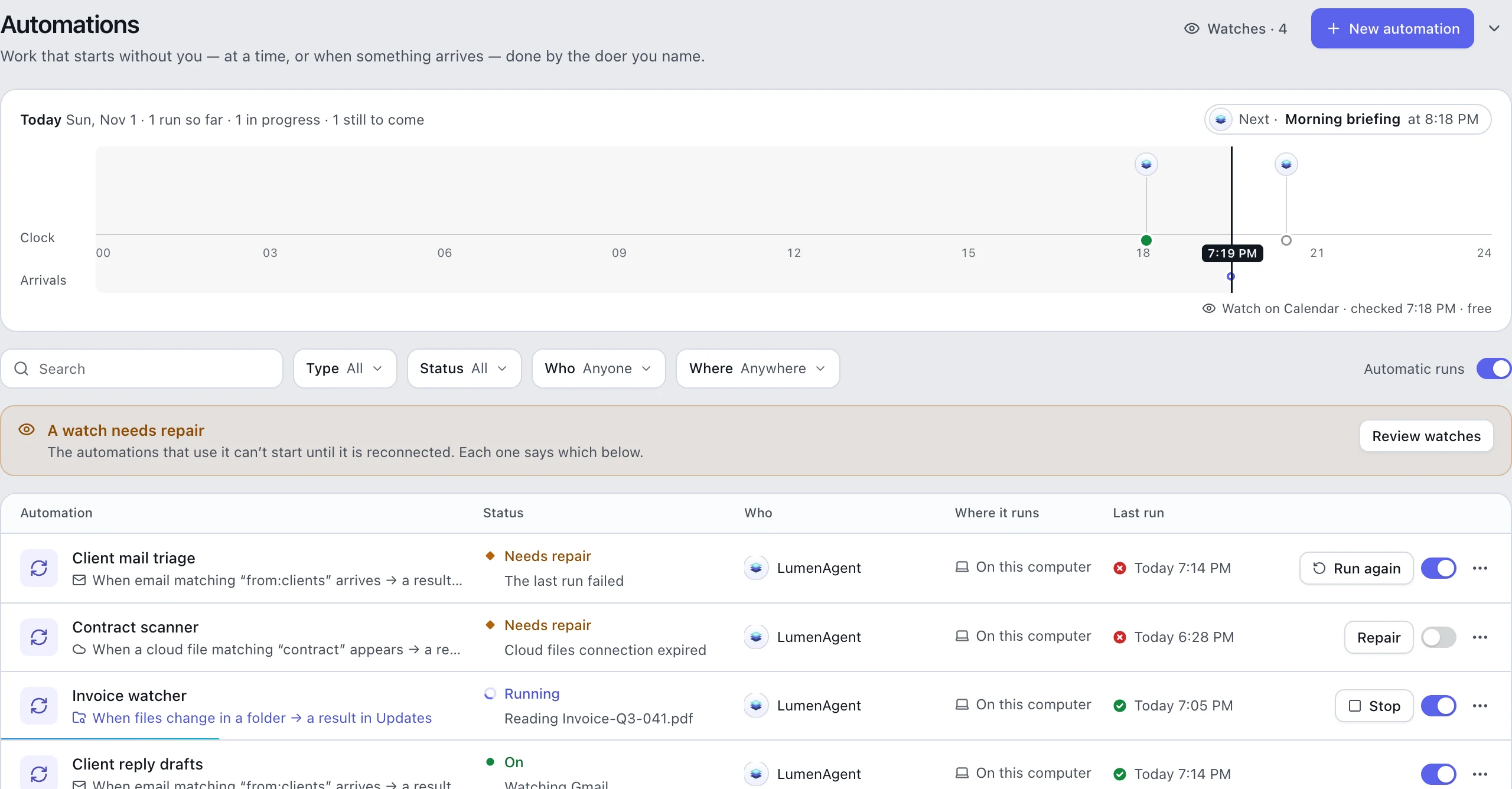
Everything lives on one page. A strip across the top shows today — what ran, what is running, what is next — and each watch with when it last checked: “checked 7:18 PM · free”. Every row says what starts it, who does the work, where it runs, and how its last run went. When a watch breaks, say an expired connection, the page says which automations are waiting on it. Each row has its own switch to pause it, and a finished run can be run again.
The limits, plainly
- Automations run on this computer, while LumenQube is running. With Keep running after the window closes, it carries on in the background. Like the memory and the map in An AI that shows what it knows, the work happens here.
- Connected triggers need that service connected, and automations that act need a paid plan — see pricing.
- An unattended run cannot stop and ask. In the default posture, an action that would need your OK is left for you or announced ahead in the run’s record — never done quietly.
Questions about automations
Do automations use credits while they wait?
No. Watching is free. Credits are spent only when a trigger starts a run, and only for that run.
What happens if a watch stops working?
The page says so — “A watch needs repair” — and names the automations that cannot start until it is reconnected, so a broken watch never fails silently.
Does my computer need to be on?
Yes. Automations run on this computer while LumenQube is running. Turn on Keep running after the window closes and it carries on in the background.


