The riskiest moment in working on someone else’s spreadsheet is not the editing. It is the round trip: opening a client’s .xlsx in a different tool, changing it, and sending it back as if nothing else changed. Macros, pivot tables, slicers and charts are exactly the things that fall out quietly on the way.
Most tools report that trip with one word — imported, saved. LumenQube reports it as two lists: what it read, and what it could not bring across. And when you write the file back, it works in an order designed so that nothing you did not mean to change is lost. This guide follows one workbook through the whole trip.
When an assistant edits a workbook, two different things can break: the numbers and the file. Most attention goes to the first — did the formula come out right? The second is quieter: a pivot table that no longer exists, a macro that did not survive, a chart that never came back. A good answer inside a broken file is still a broken file.
Opening: the receipt
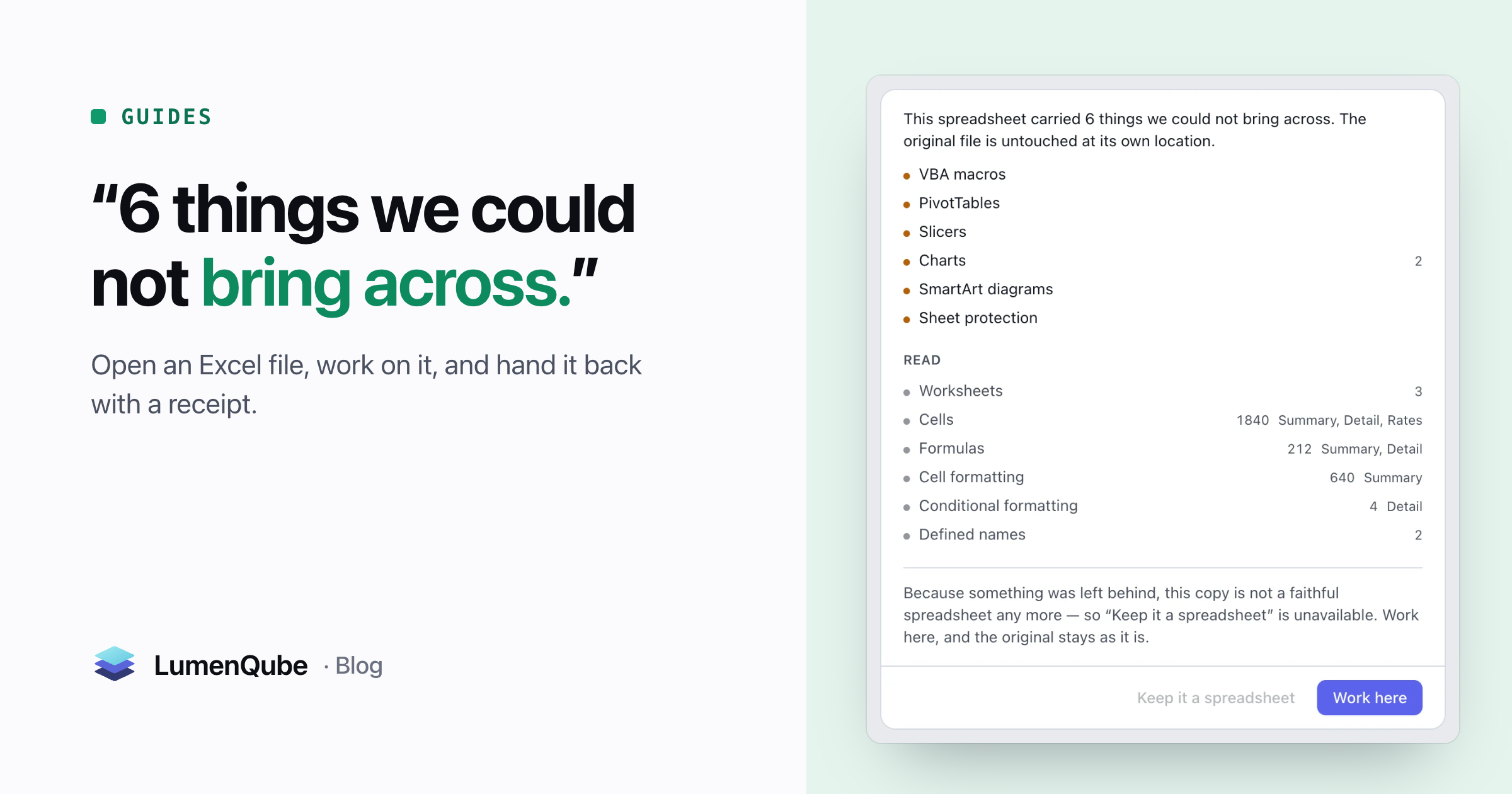
Open a desktop Excel, Word or PowerPoint file into LumenQube’s editors and you get a working copy; the original stays where it is. If anything could not come across, a receipt says so before you start. For a workbook with macros, pivots and slicers, it read: “This spreadsheet carried 6 things we could not bring across. The original file is untouched at its own location.”
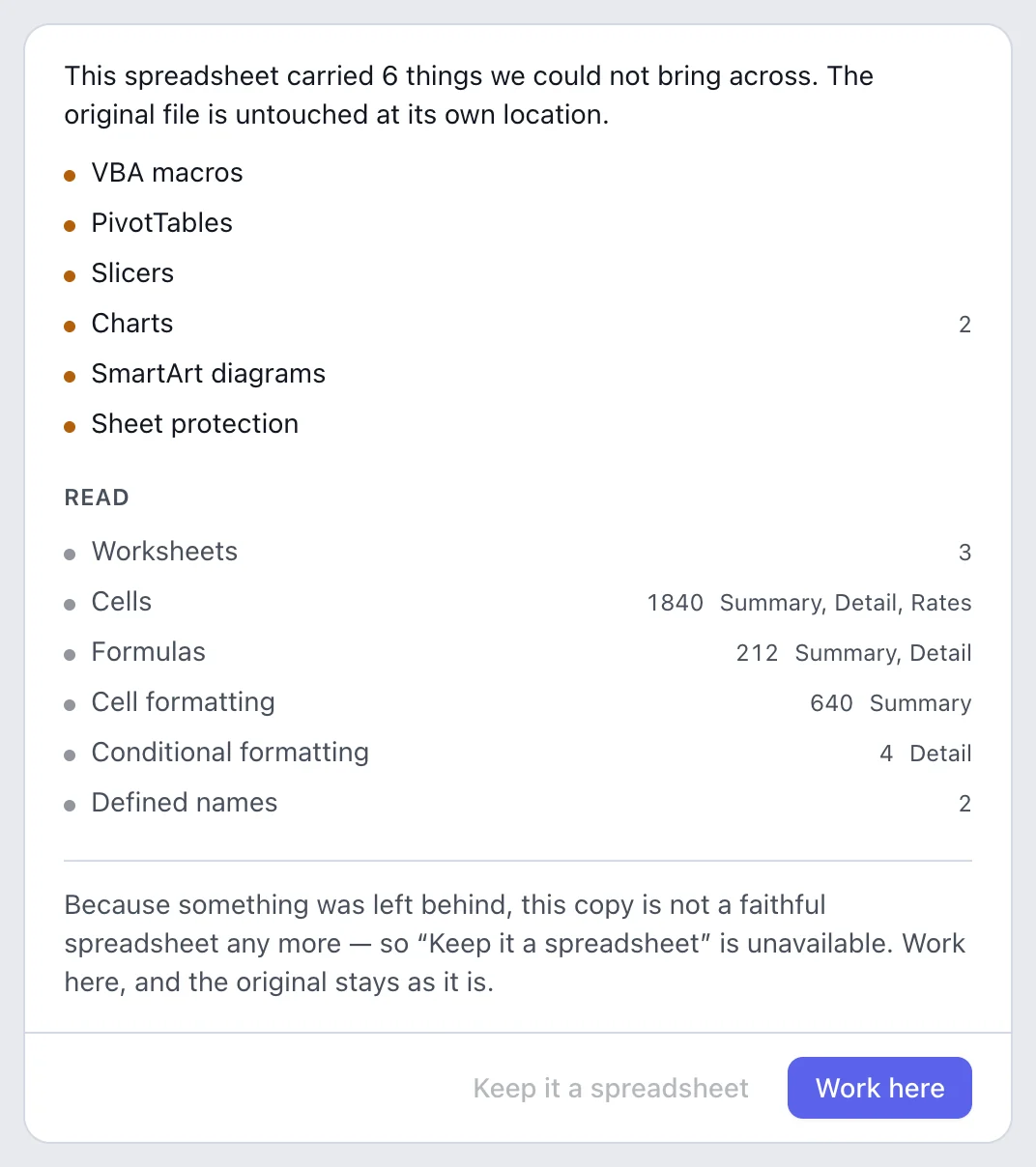
Below the losses is what was read — three worksheets, 1,840 cells, 212 formulas, conditional formatting, defined names — each counted and named by sheet, from the file itself rather than an estimate. Because something was left behind, the copy is no longer offered as a faithful spreadsheet: Keep it a spreadsheet is unavailable, and Work here is the way on. When nothing is lost, the receipt says “Everything in this spreadsheet came across.”
The whole round trip
- You open Q3 orders.xlsx from your disk.
- LumenQube works on a copy. The original is not touched.
- The receipt lists what it read and what it could not bring across.
- You work on the copy — by hand or with the assistant.
- Update the original shows what will not be written, before anything is.
- First, a backup beside the original. If the backup fails, nothing changes.
- Then a check: has anything else changed the file since you opened it?
- Only then is it written — exactly the bytes you previewed.
- A receipt on the way in: what was read, and what was not.
- A preview on the way out that is exactly what gets written.
- A backup first. A failed backup is a refusal, not a warning.
- A refusal when another app changed the file.
Handing it back
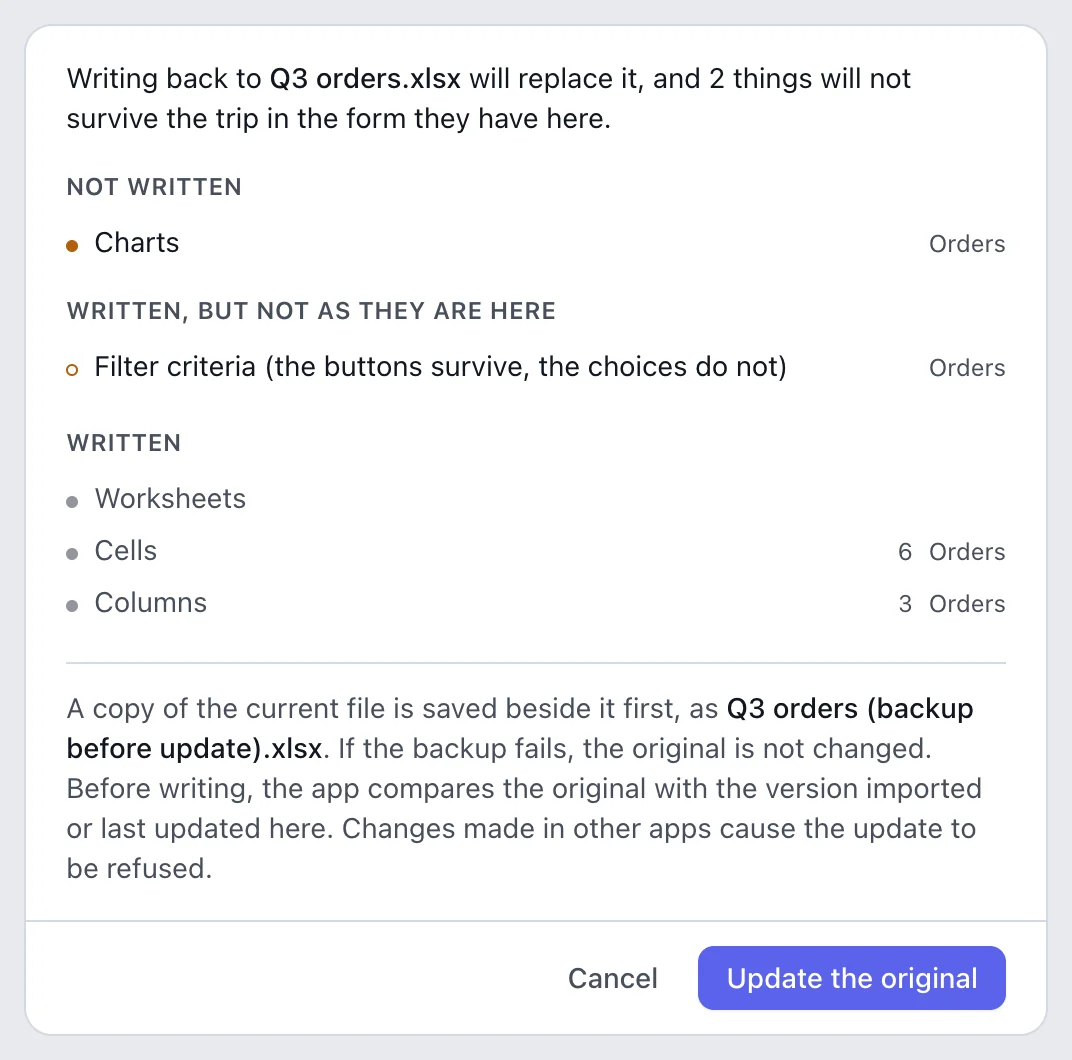
Update the original… sits in the File menu, above Export a copy. Before it writes, it states the trip plainly: “Writing back to Q3 orders.xlsx will replace it, and 2 things will not survive the trip in the form they have here.” Losses split into Not written — here, a chart — and Written, but not as they are here: the filter buttons survive, the choices do not.
What the preview lists is what gets written; the dialog and the file come from one plan, not two guesses, and Cancel leaves everything as it was. The backup is named so you can find it — Q3 orders (backup before update).xlsx, beside the original. And if you would rather replace nothing, Export a copy writes a new file and leaves the original alone.
When someone else got there first
- 10:02 — you open the workbook and work on the copy.
- 10:40 — a colleague saves a change to the same file in Excel.
- 11:15 — Update the original compares the file with the version you opened.
- They differ, so it refuses. Nothing is written, and your copy is untouched.
On a shared drive this is ordinary: you open the file in the morning, a colleague edits it at lunch. Overwriting would erase their work without either of you knowing. So the update compares first, and if the file changed it stops: “Something else changed that file since you opened it, so nothing was written. Your copy here is untouched.” Merging two people’s edits is a judgment call, and LumenQube leaves it to you.
Where this applies
The scope is the honest part. The receipt and the update apply to a desktop file opened into Sheets, Docs or Slides, one file at a time. A workbook opened from a connected cloud drive, a Word file dragged onto the window, or several files opened together do not get the receipt today. And some files cannot be written back at all; then the dialog says so instead of offering the button.
- Open the file itself, not a copy of a copy, so the check compares against the version people actually use.
- Read the receipt before you start. If it lists macros or pivot tables you depend on, do that part of the job in Excel.
- Keep the backup until whoever owns the file has seen the update.
AI fits inside this, not around it. An assistant working on the copy holds its removals for you — AI that asks before it changes your work — and LumenAgent can build a whole model from files like this one: One request, three files.
Questions about Office files
Does LumenQube keep my Excel formulas?
Formulas are read and counted on the receipt — 212 in the example. When you update the original, the dialog lists anything that will not be written or will change form, so nothing disappears unannounced.
Will it overwrite a file someone else changed?
No. Before writing, it compares the file with the version you opened. If anything else changed it, the update is refused and nothing is written.


